Because of a synchronization problem on our servers, some Dukascopy tick data downloaded between late August and October 3, 2026 has gaps. The data on our servers has been fixed. If you downloaded any of the affected days, they need to be removed and downloaded again. Data from other sources is not affected.
Deleting the files yourself via File Explorer doesn't work, because Tick Data Manager keeps its own record of what it has downloaded. The repair tool takes care of both the files and that record.
Before you start
- Close Tick Data Manager and any MetaTrader terminals that use Tick Data Suite. The tool tells you if something is still open.
- Make sure you're connected to the internet.
- Several Windows users? If several users on this computer use Tick Data Suite, run the tool once for each of them, signed in as that user.
Download the repair tool
Running the tool
1Run the downloaded file
Double-click the file you downloaded. It doesn't need to be installed and doesn't need administrator rights.
2If Windows shows a warning
If you see "Windows protected your PC", click More info, then Run anyway.
3Check the summary and click Repair
The tool shows what it will repair. Nothing is changed before you click Repair.
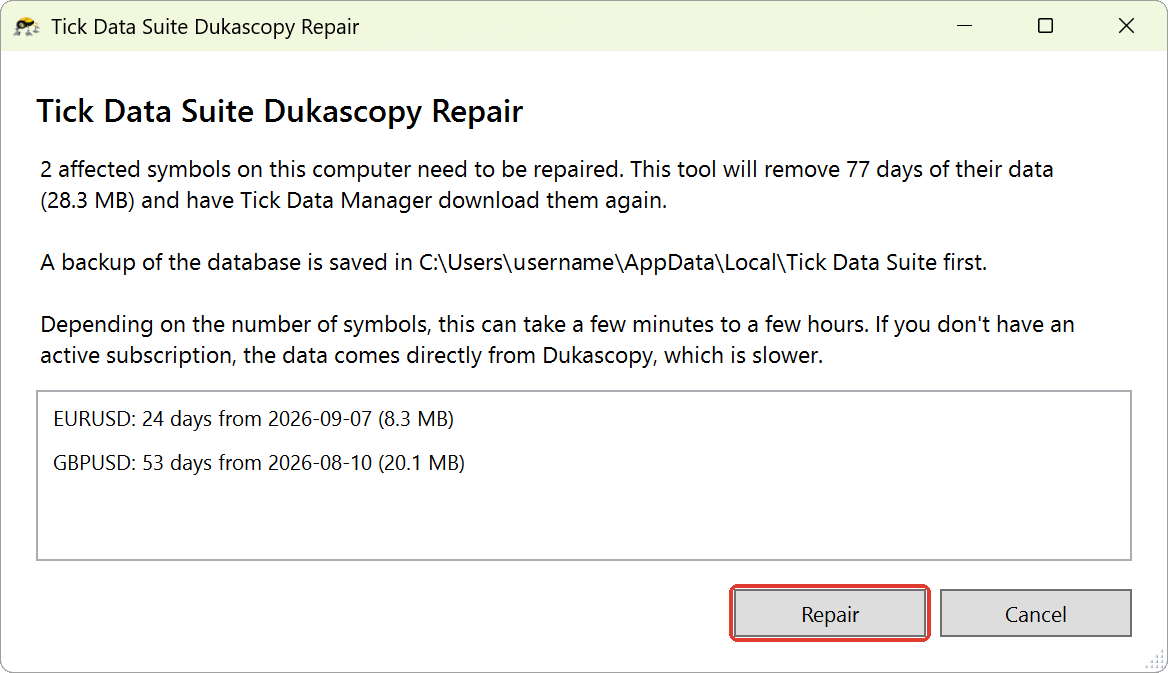
Button says Next? Some symbols can't be downloaded again automatically. The tool then asks whether to remove their affected data, as described in Some symbols are listed as skipped below. Either answer starts the repair.
4Let Tick Data Manager finish
Depending on the number of symbols, this can take a few minutes to a few hours. If you don't have an active subscription, the data comes directly from Dukascopy, which is slower.
5Done
When the tool says Done, you're finished. It also shows where it saved its log.
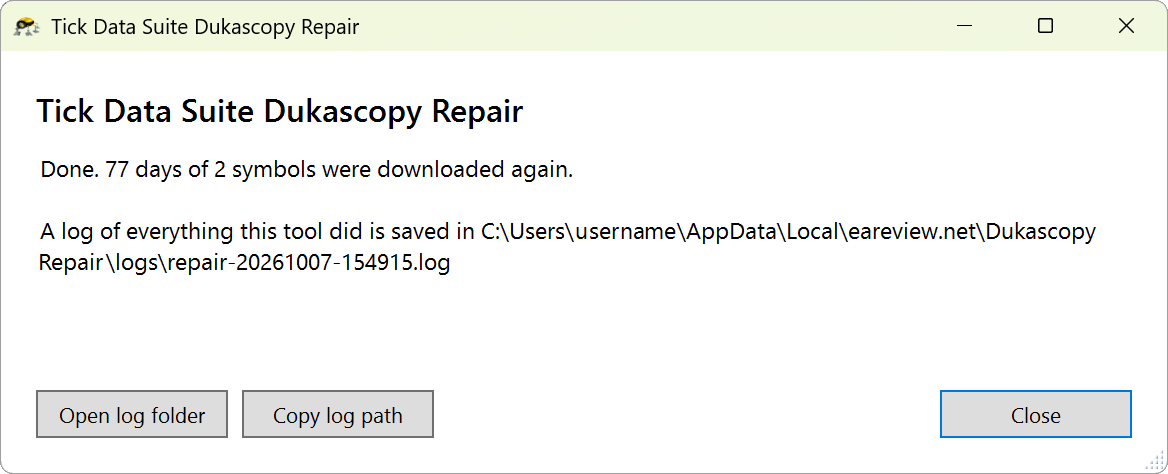
Download interrupted? For example because you closed Tick Data Manager or lost your connection. Run the tool again. It remembers what still needs to be downloaded.
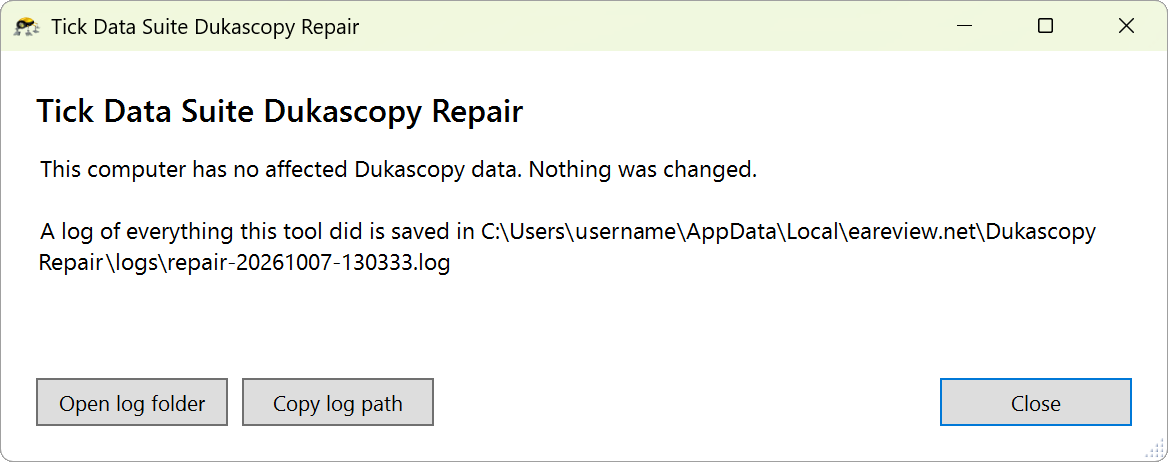
Nothing to fix? If you already ran the tool, or downloaded the affected days again on or after October 4, it tells you so and doesn't change anything.
Some symbols are listed as skipped
Why: The tool skips a symbol when repairing it would make Tick Data Manager download the symbol's whole history, or when your version of Tick Data Suite can't download it. The summary lists these symbols.
Your choice: The tool offers to remove the affected data of these symbols for you. You can also remove it yourself, as described in How to remove tick data in Tick Data Manager.
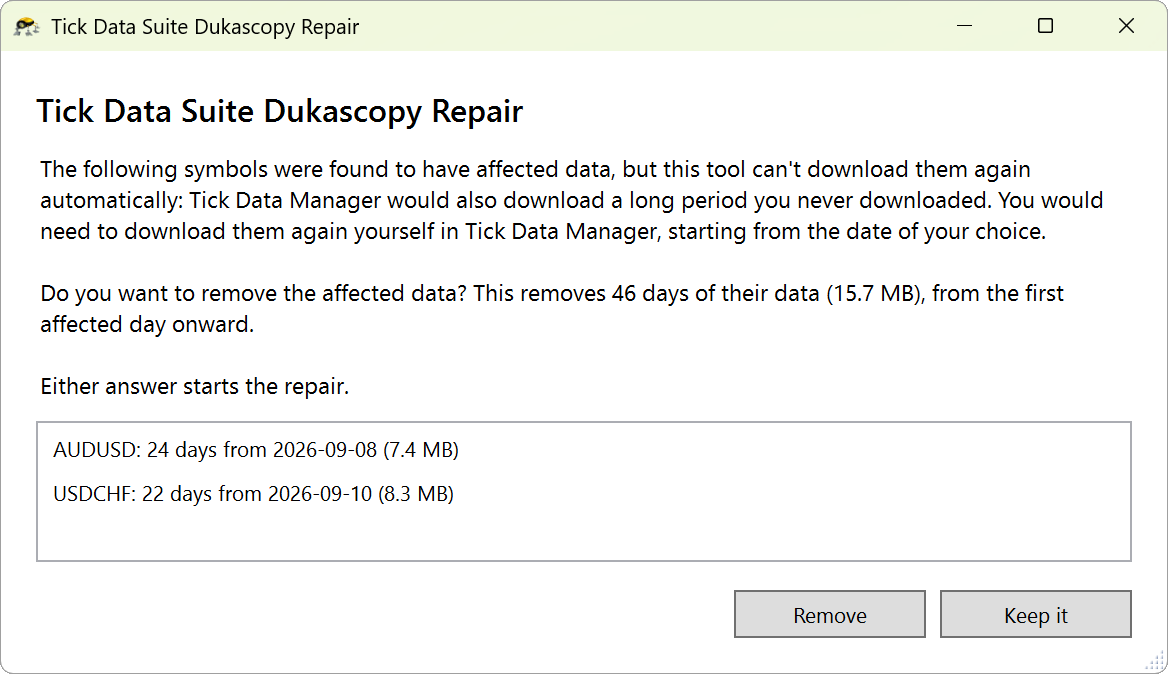
If you choose Remove, the final screen lists the symbols whose affected data was removed.
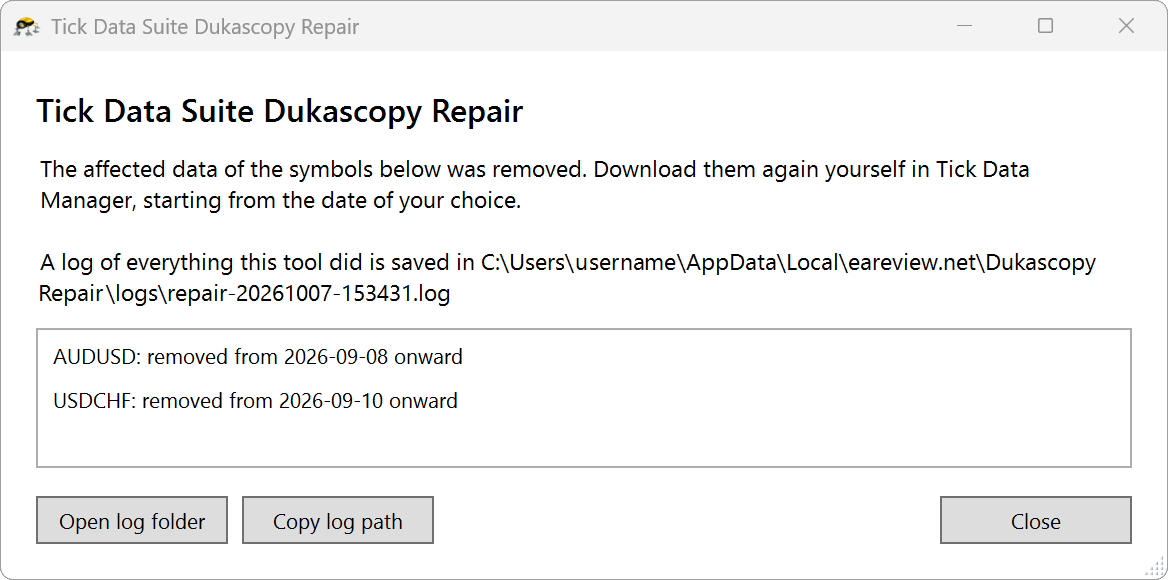
Then: download the data again for those symbols in Tick Data Manager, starting from the date you need.
After the repair
- Backtests: if you ran backtests on any of the symbols the tool lists, run them again.
- Exported files: the tool doesn't change files you exported from Tick Data Manager. If you exported data for any of those symbols, for example to CSV, export it again and replace it wherever you used it.
What the tool does
- Checks that Tick Data Suite is installed and finds your data folder.
- Looks for the affected Dukascopy days in your data. Only the affected symbols are touched, and only Dukascopy data. Other data sources, other symbols and your settings are never changed.
- Shows what it found: how many symbols and days, and how much disk space they use. Nothing is changed until you start the repair.
- Backs up Tick Data Manager's database.
- Removes each affected symbol's data from the first affected day onward. Tick Data Manager only downloads data after the most recent day it has, so the later days are removed too and downloaded again along with the affected ones.
- Starts Tick Data Manager, which downloads the removed days and closes by itself when it's done.
- Checks that the days are back and tells you if anything is still missing.
Already correct: days you downloaded on or after October 4, 2026 are left alone.
What does the backup contain?
The database only. The removed files aren't kept. Restore the backup only if support asks you to, and then run Rescan in Tick Data Manager.
If you used Remove duplicate ticks on an affected symbol
If you ran Remove duplicate ticks in Tick Data Manager on an affected symbol on or after October 4, the tool may treat its affected days as already correct. If a backtest still shows gaps for that symbol, remove its data from the first day with gaps onward in Tick Data Manager, as described in How to remove tick data in Tick Data Manager, and download it again.
Contacting support
The tool writes a log of everything it does and shows where it's saved. If you contact support, please attach it.