Linking MT5 Symbols with Tick Data
Once your custom symbols exist in MT5, you tell the Tick Data Suite which tick data source should feed each one. This article covers the symbol linking workflow, including bulk and per-row configuration, rebuilding the cache, and cleaning up.
Prerequisites
- MT5 terminal connected to the Tick Data Suite (how →)
- At least one custom symbol created in MT5 (how →) — this step is mandatory; without custom symbols the association window will be empty
- Tick data downloaded (how →)
Open the symbol association window
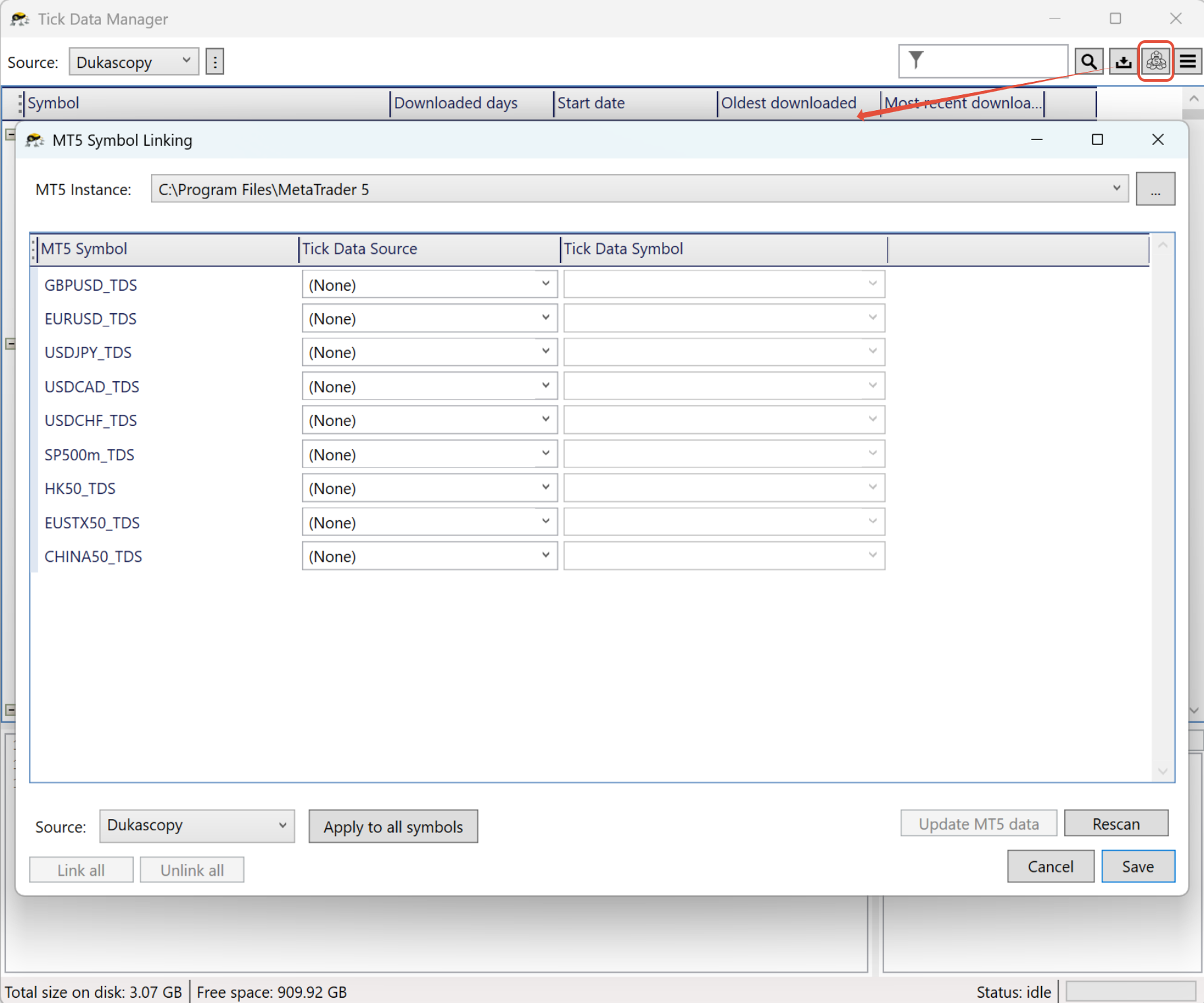
1. In the Tick Data Manager toolbar, click the MT5 button.
2. In the MT5 Instance dropdown at the top, select the MT5 terminal you want to configure. Each terminal keeps its own symbol associations, so repeat this for every terminal you connected.
The table below now lists every custom symbol from the selected MT5 terminal.
If the selected MT5 terminal is currently running, any changes made here (new associations, source changes, downloaded data) will not take effect until MT5 is restarted. Close MT5 and start it again after saving changes.
You haven't created any custom symbols yet. Open MT5, create them (see Creating MT5 custom symbols), come back here, and click Rescan. If you did create them but they don't show, make sure they're visible in MT5's Market Watch.
Fast path — all symbols from a single provider
If all your tick data comes from one provider (e.g. Dukascopy), this configures everything in about 10 seconds.
1. At the bottom of the window, pick your provider from the Source dropdown.
2. Click Apply to all symbols. Every row now uses that provider.
3. Click Link all. The Tick Data Suite matches each custom MT5 symbol with the best available tick data symbol from the chosen source.
4. Click Update MT5 data. This generates the virtual history and tick data files for every linked symbol at once.
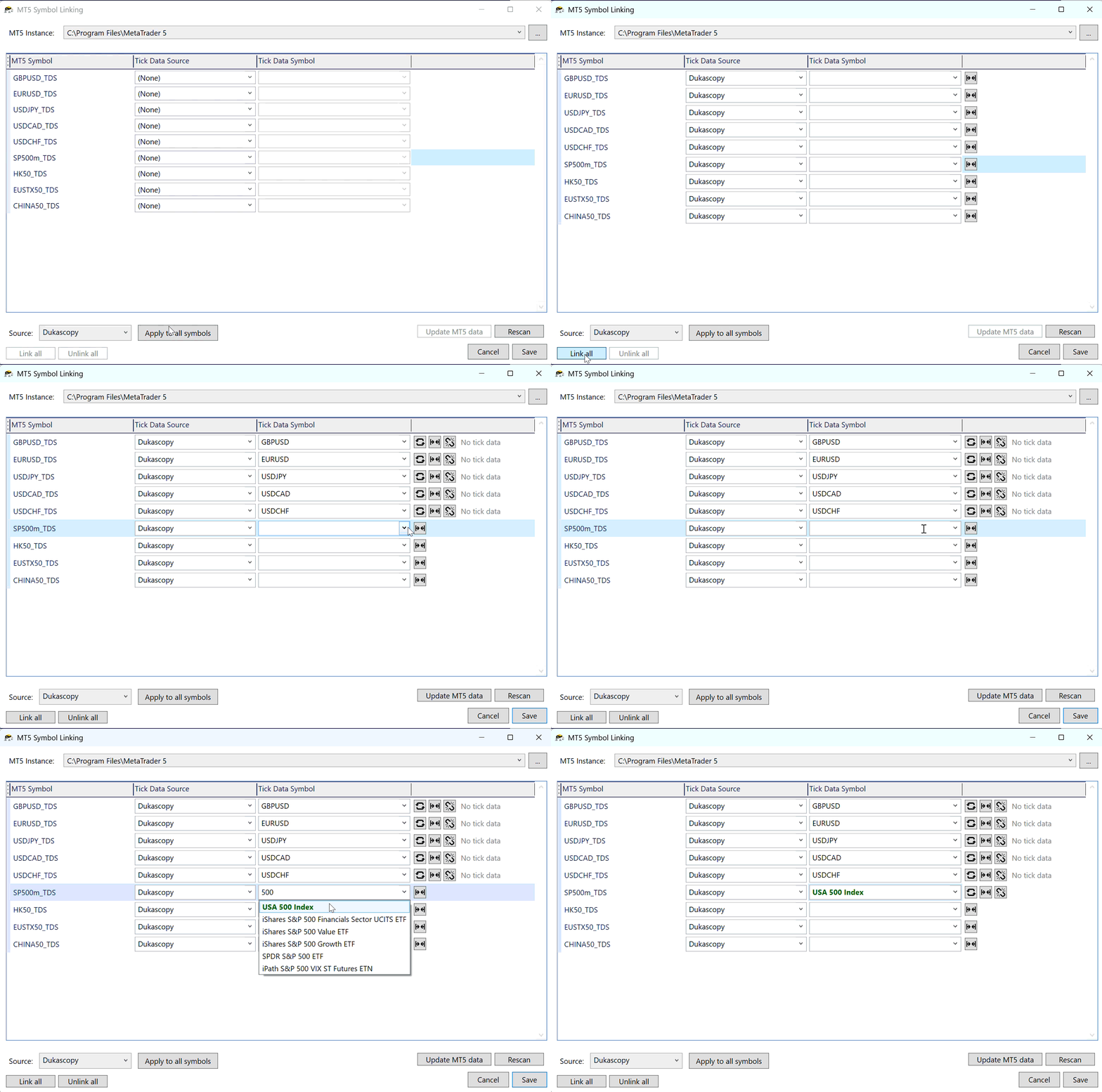
Standard Forex pairs (even with a _TDS suffix) will match instantly. Exotic or oddly-named symbols (like SP500m in the screenshot above) may be left unmatched — link them manually with the per-row method below.
Symbols that have existing tick data will be highlighted in green. For symbols that do not have tick data, No tick data will be displayed.
Per-row configuration
Best when you use different providers for different symbols, or when the fast path left some rows unmatched.
1. In the Source column, pick the tick data provider.
2. In the Symbol column, pick the matching tick data symbol — or click the link icon on that row to auto-match just this one.
3. When all rows are set, click Update MT5 data at the bottom.
Symbols you don't care about can be left unconfigured — they continue to use whatever data MT5 already has.
What "Update MT5 data" does
It regenerates the virtual history and tick data files MT5 will read during a backtest. Click it after:
- Associating symbols for the first time
- Changing a symbol's source or tick data mapping
- Downloading new tick data and wanting it reflected in MT5 immediately
For a single-symbol regenerate (faster when you only touched one row), click the refresh icon on that row instead.
Automatic update prompt
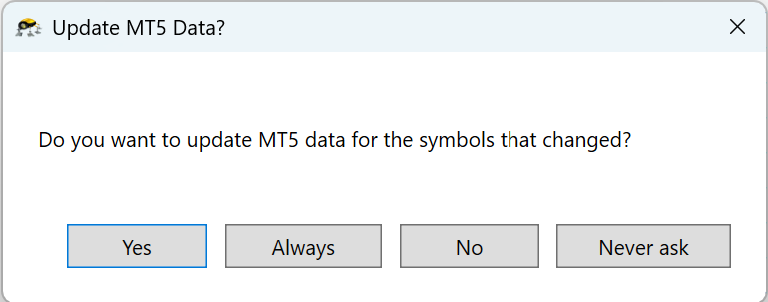
When closing the symbol association window after making changes, or after downloading new tick data, the Tick Data Suite prompts whether to update the MT5 cache:
| Button | Effect |
|---|---|
| Yes | Update the cache now (this time only). |
| Always | Update the cache now and enable automatic updates from now on — equivalent to enabling Automatically update cache in Settings → MT5. Future symbol changes, downloads, and timezone edits update the cache without prompting. |
| No | Skip the update this time. |
| Never ask | Skip the update and stop prompting in the future. The cache is only updated when explicitly clicking Update MT5 data. |
Cleaning up outdated symbols
Rows shown in red are custom symbols that no longer exist in MT5 (you deleted them from the Symbols window). Click the minus button on those rows to remove them.
Adding new custom symbols later
When you create more custom symbols in MT5 after the initial setup:
1. Make sure the new custom symbols are shown in MT5's Market Watch.
2. Come back to the symbol linking window in the Tick Data Manager.
3. Click Rescan — the list reloads and the new custom symbols appear.
4. Link them (fast path or per-row), then click Update MT5 data again.