Connecting an MT5 Terminal to the Tick Data Suite
For the Tick Data Suite to feed data into your MetaTrader 5, it needs to know where the terminal lives on your PC, what timezone your broker uses, and it needs to be linked to MT5 so it can load alongside it. In most cases, the Tick Data Suite handles all of this automatically.
Prerequisites
- Tick Data Suite installed
- MetaTrader 5 installed and opened at least once (so it has created its data folders)
Automatic setup (first run)
The first time the Tick Data Manager starts, it automatically scans the PC for MT5 installations, adds every terminal it finds, and enables the Tick Data Suite link on all of them. Default timezone settings are applied (GMT+2, US DST — the most common broker configuration).
When the scan finishes, a message box reports how many terminals were found and offers to open the MT5 Terminal Manager for review.
Reviewing and adjusting the configuration
Click Yes in the message box to review what was detected. You can also open the Terminal Manager later by opening the MT5 module and then using the "..." button next to the terminal dropdown
Verify GMT and DST for each terminal
This is the most important setting if you are using EAs that trade only during a specific time window. Get it wrong and your backtest candles will be shifted by several hours vs. your broker's live chart, and your results may be inaccurate.
• GMT column: verify the GMT offset matches your broker's server time. The default is GMT+2 — most brokers use this.
• DST column: verify the DST rule. The default is US DST — most brokers use this.
How do I find out exactly what my broker uses? The surest way is to open a live chart in MT5 over a weekend or holiday and compare it against a live chart of the same symbol from a trusted external source (for example, TradingView). If the Monday opening candles line up exactly, your GMT/DST is correct.
Alternatively, you can search the broker's website or email their support and ask: "What is the server timezone (GMT offset and DST rule) for my account?" They will have a canned answer.
For the detailed theory, see our Using GMT and DST guide.
Disable terminals you don't need
All discovered terminals are linked by default. To disconnect the Tick Data Suite from a specific terminal, untick its TDS link checkbox. The terminal then runs without the Tick Data Suite. Re-tick the checkbox at any time to reconnect.
If the MT5 terminal is currently running when you change the TDS link, close it and start it again so the change takes effect.
Adding terminals manually
If the automatic scan missed a terminal (typical for portable MT5 installations in unusual folders), or if a new terminal was installed after the initial setup:
1. Open the MT5 Terminal Manager (MT5 button → "..." button next to the terminal selection dropdown).
2. Click Add MT5 Terminal.
3. Click Browse... and navigate to the folder containing your terminal64.exe.
4. Enable the Portable checkbox if you are adding a portable installation.
5. Set GMT and DST.
6. Click Add.
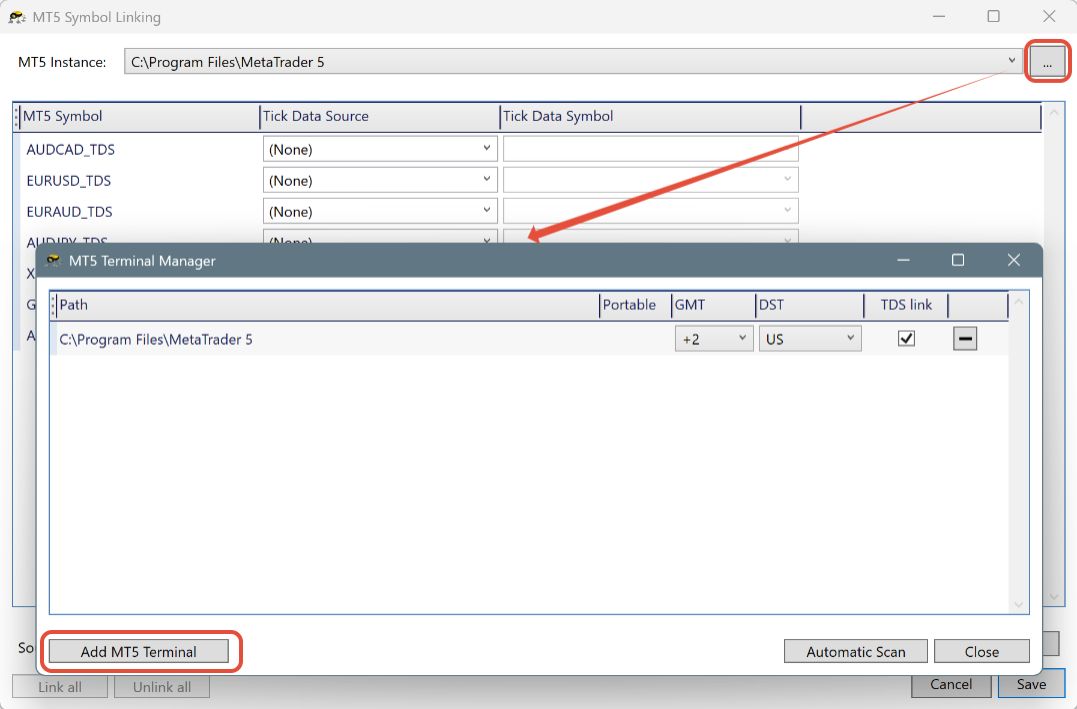
To re-scan for newly installed terminals, click Automatic Scan at the bottom of the Terminal Manager.