Creating MT5 Custom Symbols for the Tick Data Suite
The Tick Data Suite for MT5 will only feed data into custom symbols — not into your broker's built-in symbols. You need to create a custom copy of every instrument you want to backtest. It's a one-time job that takes about 30 seconds per symbol.
Steps
1. Open your MetaTrader 5 terminal.
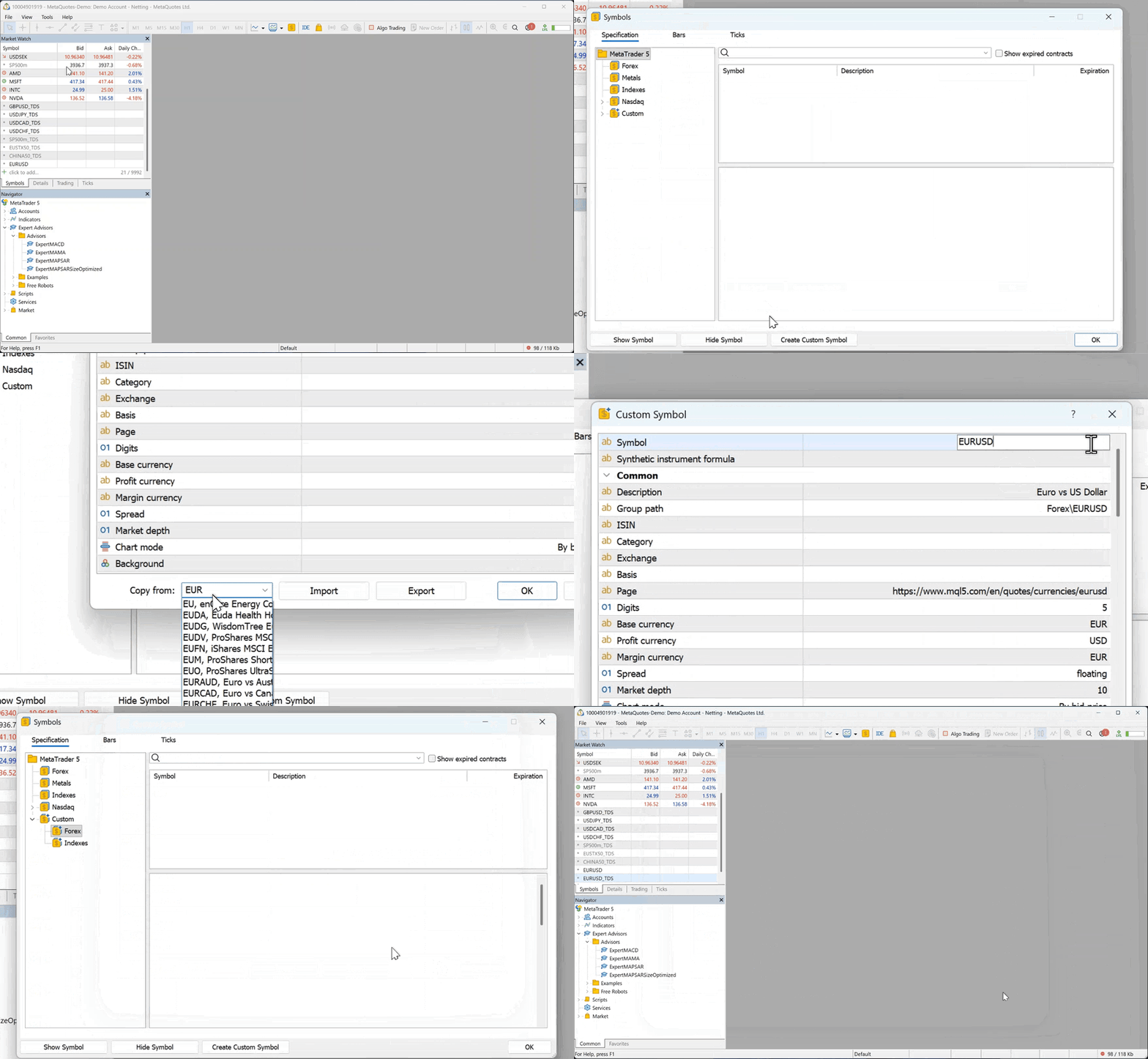
2. Press Ctrl+U, or go to View → Symbols in the top menu. The Symbols window opens.
3. Click Create Custom Symbol. The custom symbol properties dialog opens.
4. In the Copy From: field, pick the broker symbol you want to base the custom symbol on (e.g. EURUSD). This copies all the contract specifications (digits, tick size, contract size, margin rules, etc.) so the custom symbol behaves identically to the original in the Strategy Tester.
5. At the top of the dialog, rename the new symbol by appending a _TDS suffix: EURUSD → EURUSD_TDS.
6. Click OK to save. The new symbol appears under the Custom category in the Symbols window.
Why the _TDS suffix?
It's a naming convention, not a technical requirement — but it's strongly recommended because:
- You can tell at a glance which symbols are backed by Tick Data Suite data.
- It's short enough that MT5 won't truncate it in the Strategy Tester symbol dropdown.
- All our documentation and support articles assume this convention.
Do I need to customize the contract specs?
No. The Copy From field copies everything (digits, tick size, contract size, margin, commissions) from the broker symbol automatically. Just leave every field at its default value and click OK.
I already created custom symbols for the old CSV workflow
Those same symbols work with the new direct integration. You don't need to recreate them. Go straight to Linking MT5 custom symbols to tick data →.
Do I need to create a custom symbol for every pair in Market Watch?
No. Only create custom symbols for the ones you actually want to backtest with high-quality tick data. You can always come back and add more later — just click Rescan in the Tick Data Manager symbol linking window afterwards.