Running Your First MT5 Backtest with Tick Data Suite
This article only applies to Tick Data Suite version 3.0 and above, which is currently under development and not available to the general public. Tick Data Suite for MT5 will require a separate subscription.
Once the setup steps are done, running a tick-data backtest in MT5 is almost the same as running any other Strategy Tester session — you just need to remember to pick the _TDS version of the symbol.
Prerequisites
- Custom symbols created and linked with tick data sources (how →)
- Update MT5 data already clicked for those symbols.
Start MT5
✓ Do this
Start your MetaTrader 5 terminal the way you always have — desktop shortcut, Start menu, broker launcher, whatever. No special launch procedure is needed.
Start your MetaTrader 5 terminal the way you always have — desktop shortcut, Start menu, broker launcher, whatever. No special launch procedure is needed.
Once MT5 is open, verify the Tick Data Suite is active:
✓ Check
In MT5's top menu, open Help. You should see a new entry called About Tick Data Suite at the bottom of the menu. This is your confirmation that the Tick Data Suite is connected to this terminal.
In MT5's top menu, open Help. You should see a new entry called About Tick Data Suite at the bottom of the menu. This is your confirmation that the Tick Data Suite is connected to this terminal.
No "About Tick Data Suite" entry in the Help menu? The terminal isn't linked, or MT5 was started before you linked it. See Troubleshooting.
Configure and run the backtest
✓ Do this
1. Open the Strategy Tester (View → Strategy Tester, or Ctrl+R).
2. Pick your Expert Advisor.
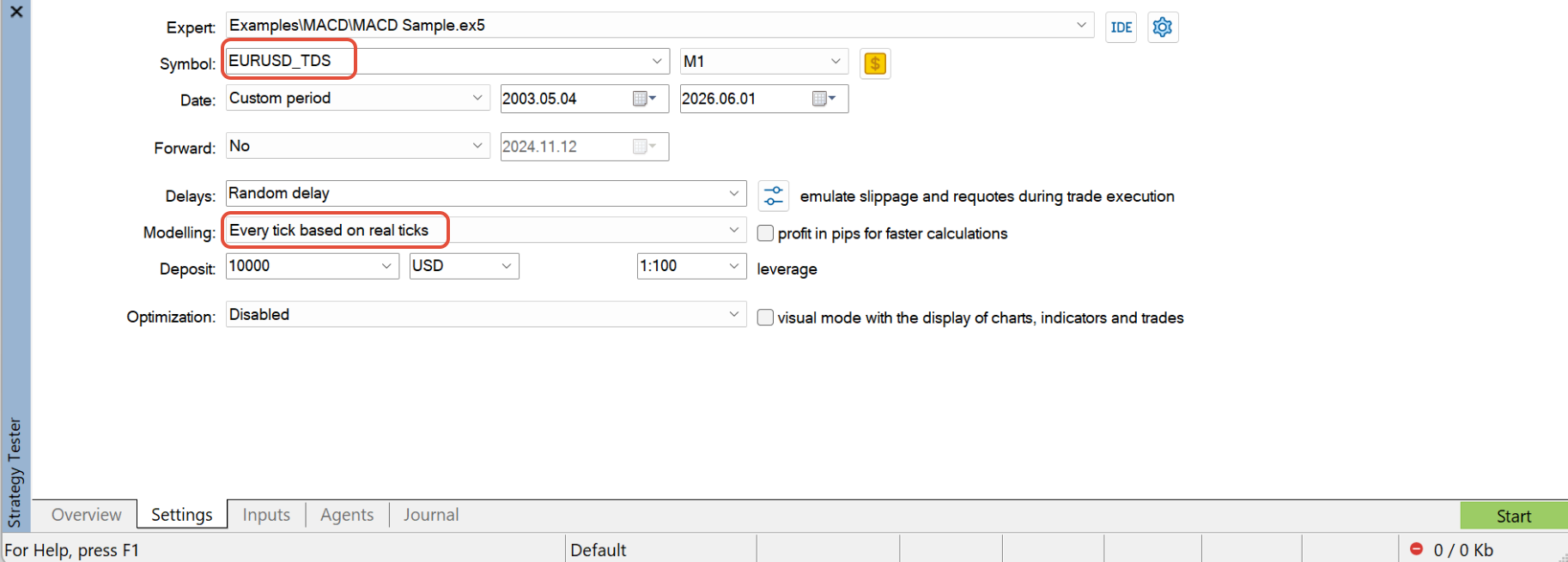
3. In the Symbol dropdown, select the _TDS version (e.g. EURUSD_TDS) — NOT the built-in EURUSD.
4. Set Modelling to Every tick based on real ticks.
5. Set timeframe, date range, deposit, and any other EA parameters as usual.
6. Click Start.
1. Open the Strategy Tester (View → Strategy Tester, or Ctrl+R).
2. Pick your Expert Advisor.
3. In the Symbol dropdown, select the _TDS version (e.g. EURUSD_TDS) — NOT the built-in EURUSD.
4. Set Modelling to Every tick based on real ticks.
5. Set timeframe, date range, deposit, and any other EA parameters as usual.
6. Click Start.
⚠️ This is the #1 mistake
Picking the built-in EURUSD instead of EURUSD_TDS. The Tick Data Suite only feeds data into custom symbols, so if you select the built-in one, MT5 will simply use whatever history the broker supplied — not your tick data.
Picking the built-in EURUSD instead of EURUSD_TDS. The Tick Data Suite only feeds data into custom symbols, so if you select the built-in one, MT5 will simply use whatever history the broker supplied — not your tick data.
Realistic conditions
For a realistic backtest, match your broker's live trading conditions:
| Setting | What to set |
|---|---|
| Commission | Match your broker's commission per lot (round-turn or per-side, whichever your broker uses). |
| Server ping or Random delay | Simulates execution latency. Leaving this at zero gives unrealistically optimistic fills. |
| Spread | Tick Data Suite provides variable spread automatically from the historical tick stream. |
Reviewing the results
When the backtest finishes, open the Backtest tab and make sure that History Quality is 100%. This is your confirmation the backtest used tick data.
Return to: MT5 Quick Start